If there's one visual technique that grabs attention on Instagram, it's the infinite carousel. This type of post creates a sense of continuity between the slides, encouraging the user to scroll to the end. As a data analyst and content creator, I can assure you: this type of post improves viewing time and engagement.
In this article, I'm going to show you how you too can create this effect simply and effectively, using the Canva, a free and intuitive tool - perfect for those who, like me, like to combine practicality with visual quality.
What is an Infinite Carousel?
The technique that captures attention
O infinite carousel is a sequence of images on Instagram where the elements appear to continue from one slide to the next, as if they were part of a single horizontal image. This effect causes curiosity and encourages the user to scroll to the end of the post.
Ideal for
- Quick tips
- Before and after
- Tutorials
- Sequential stories
- Visual product presentations
Why use Canva?
The ideal tool for beginners and experienced creators
O Canva is an online design platform with ready-made templates, an image bank and the option to export in high quality. The free version allows you to create professional-looking carousels.
As a father and a time-crunched digital content creator, Canva has become a real ally in everyday life.

How to Use AI to Translate Your WordPress Site in a Practical and Efficient Way
Step by step: Creating the Infinite Carousel in Canva
Plan the content
Before you open Canva, think about story or content that you want to divide between the slides. Ideally, the carousel should contain between 3 and 10 images.
Personal tip: I sketch everything out in my notebook first. Visualizing on paper helps to organize ideas more fluidly.
Learn more about how: Download Videos from Online Social Networks
Create a file with the total size of the carousel
Each Instagram slide has 1080×1350 px (portrait format). To create the infinite carousel:
- Multiply 1080 by the number of slides you want.
- For example, for 5 slides: width = 5400 px, height = 1350 px.
How to do it in Canva:
- Go to Canva.
- Click on "Custom size".
- Enter the dimensions: 5400 x 1350 px.
- Click on "Create new design".
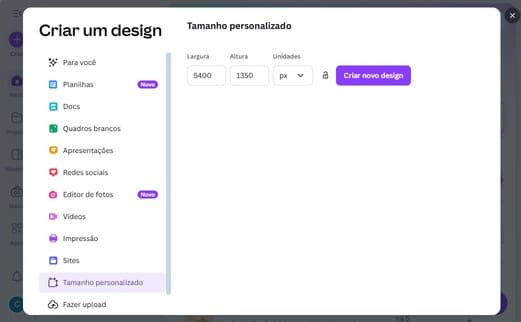
2.1 Add guides to facilitate alignment
Before you start drawing, it's essential to insert vertical guides that mark the exact division of each slide. This will help you maintain visual continuity between the blocks and prevent text or elements from being cut off.
How to add tabs in Canva:
- At the top of the editor, go to "Archive" > "Settings" > "Add tabs".
- The rulers will appear in the top and left corners of the design.

- Select Custom in the right-hand corner.
- Fill in the "column" field for this image is 5 columns.


💡 Tip: If you want even more precision, activate the snap mode in Canva to align objects more easily.
Create continuous design
Now, with the guides in place, start creating your carousel:
- Use backgrounds that extend from one slide to the next.
- Avoid "dry cuts" between blocks of text.
- Position text and graphic elements carefully so that none are cut off when the slides are separated.
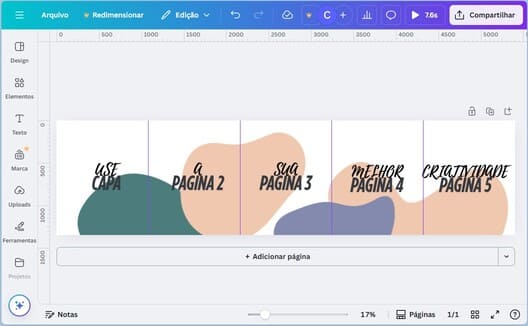
Divide the image into parts
Once you've completed the overall design, it's time to divide the image into blocks:
How to share in Canva itself:
If you have Canva Pro:
- Use the "Smartmockups" feature to slice.
If it's free:
- Download the image as a PNG or JPG.
- Go to our page Split JPG and PNG images online. 😉
- Enter the number of columns and rows and see if it's what you want, or click to enlarge the image and see if it's right.
- If all is well, split the image.

Post on Instagram
Now just upload the images to Instagram in the correct order using the carousel format. Make sure the first slide is impactful enough to make the user want to scroll.
Tips for a Successful Carousel
- Use the same color palette and typography.
- Create a visual hook on the first slide.
- End with a call to action (CTA)"Save this post", "Share with someone" or "Click on the link in the bio".
The infinite carousel is a creative and effective way of telling visual stories on Instagram. And the best part: you don't need to be a designer to create it. With a little planning and Canvayou get impressive results - even with a busy routine like ours.
Create, test, adjust... and keep sharing content with those who really follow you.